Annotate
Annotate screenshots on your Mac, and keep every edit editable.
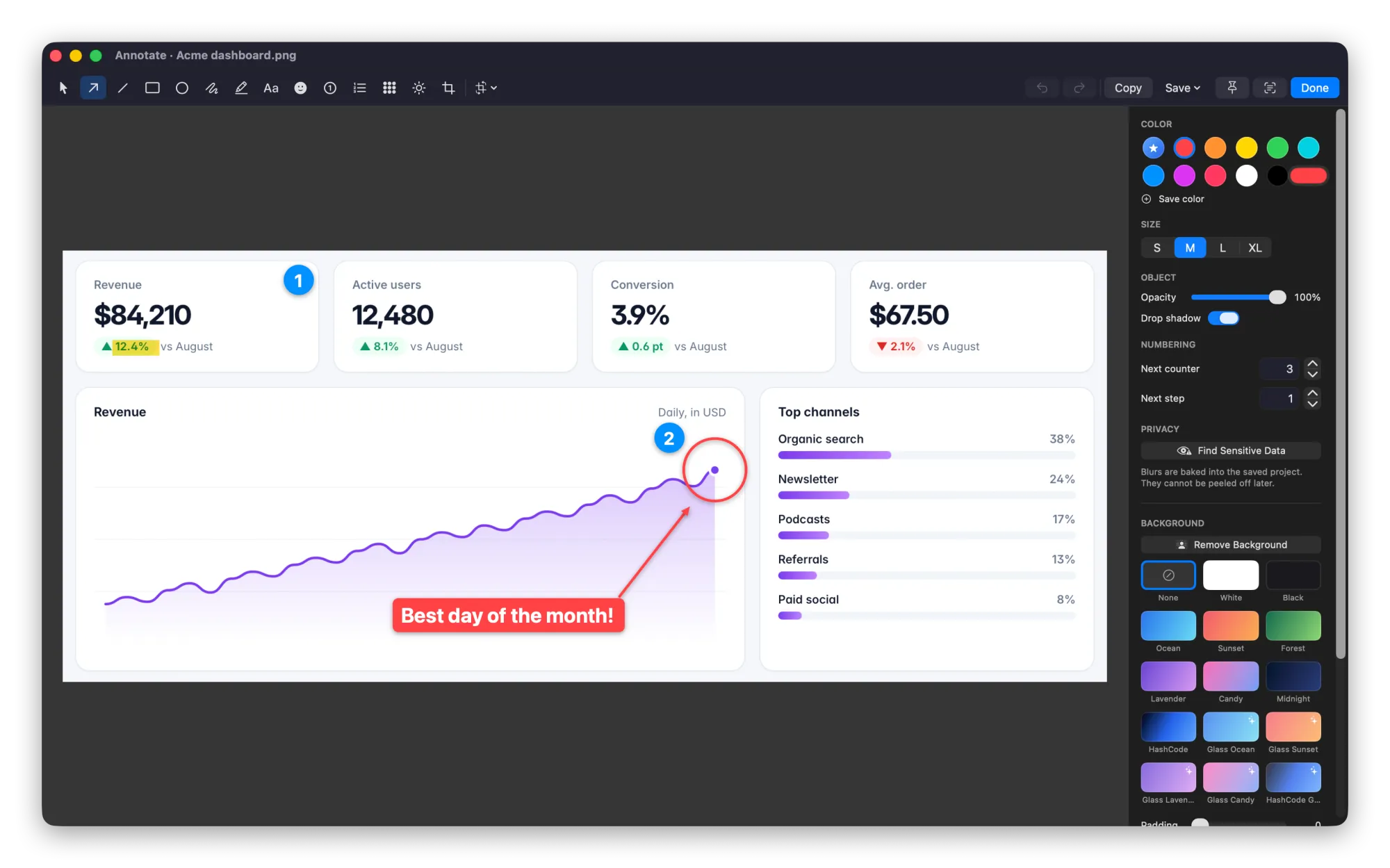
Point at what matters, number the steps and blur what should stay private. Close the editor and come back tomorrow: every arrow and label is still an object you can change.
How it works
Three steps.
Capture
Take an area, a window or a scrolling capture, or open any image.
Mark it up
Add arrows, shapes, text, step numbers, a spotlight or blur.
Share it
Copy, save, drag into any app, or save as PNG, JPEG or HEIC.
What you get
Built for work you share.
Part of HashShot, the screenshot and screen recording app for Mac that keeps everything on your Mac.
Arrows, shapes and text
Clean arrows, boxes, circles and text styles, plus a highlighter that snaps to words.
Numbered steps
Step badges renumber themselves when you remove one, so guides stay in order.
Beautify
Gradient and glass backgrounds, padding, rounded corners and shadows, saved as presets.
Remove the background
Lift a person, product or pet off its photo and place it on a new background, on your Mac.
FAQ
Questions, answered.
What is the best way to annotate a screenshot on a Mac?
Capture it with HashShot and the editor opens with arrows, shapes, text, step badges, blur and backgrounds in one place.
Can I edit the annotations later?
Yes. HashShot keeps captures as editable projects, so arrows and text remain objects you can move or change.
Can I blur private information?
Yes, by hand or automatically. HashShot can find emails, phone numbers, card numbers and API keys and blur them for good.
More from HashShot
Try HashShot free for 7 days.
Then $25 once, with a year of updates. No subscription, no account.