Scrolling screenshots
Take a scrolling screenshot of a whole page on your Mac.
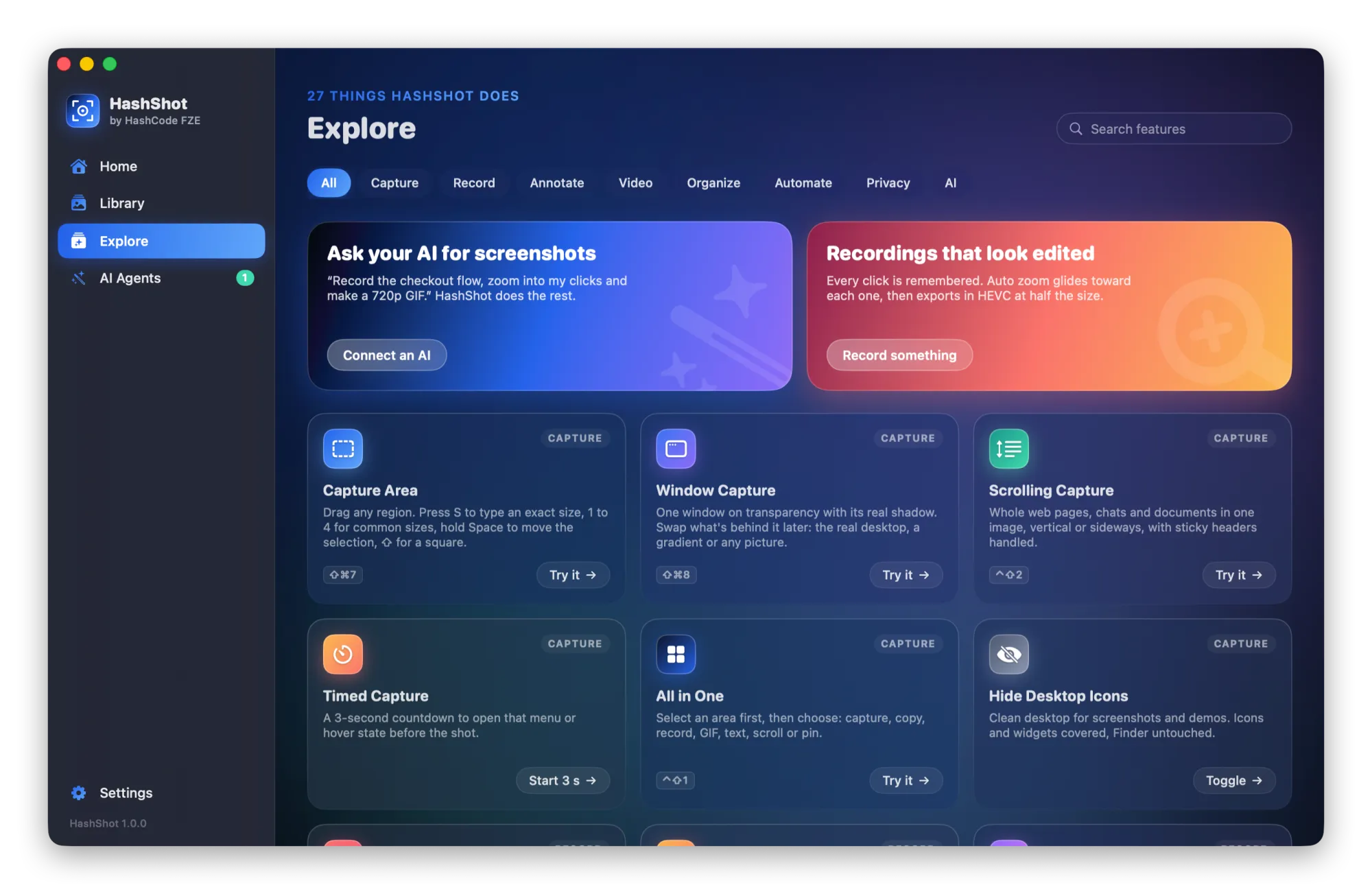
macOS can only capture what fits on screen. HashShot scrolls the part you choose for you, checks every piece and joins them into one long, seamless image.
How it works
Three steps.
Choose Scrolling Capture
Pick it from the menu bar or use its shortcut.
Select what scrolls
Drag over the page, chat or document you want to capture.
Let it scroll
HashShot scrolls and stitches on its own. Press Esc to finish early with what it has.
What you get
Built for work you share.
Part of HashShot, the screenshot and screen recording app for Mac that keeps everything on your Mac.
Vertical or sideways
HashShot works out which way the content scrolls, or you can choose.
Sticky headers handled
Headers, sidebars and toolbars that stay in place appear once, not on every strip.
Every seam is checked
Each new strip is matched against the last one before it is added, and scroll bars are kept out of the result.
Edit the result
Open the long image in the editor to add arrows, steps and blur, like any other capture.
FAQ
Questions, answered.
How do I take a scrolling screenshot on a Mac?
Install HashShot, choose Scrolling Capture, select the area that scrolls and let HashShot scroll and stitch it into one image.
Does it work outside the web browser?
Yes. It captures anything that scrolls on screen, including chats, documents, tables and settings pages.
What permission does it need?
Like all captures it needs Screen Recording permission, and it needs Accessibility permission so it can scroll for you.
More from HashShot
Try HashShot free for 7 days.
Then $25 once, with a year of updates. No subscription, no account.