Automatic redaction
Hide private details in screenshots automatically.
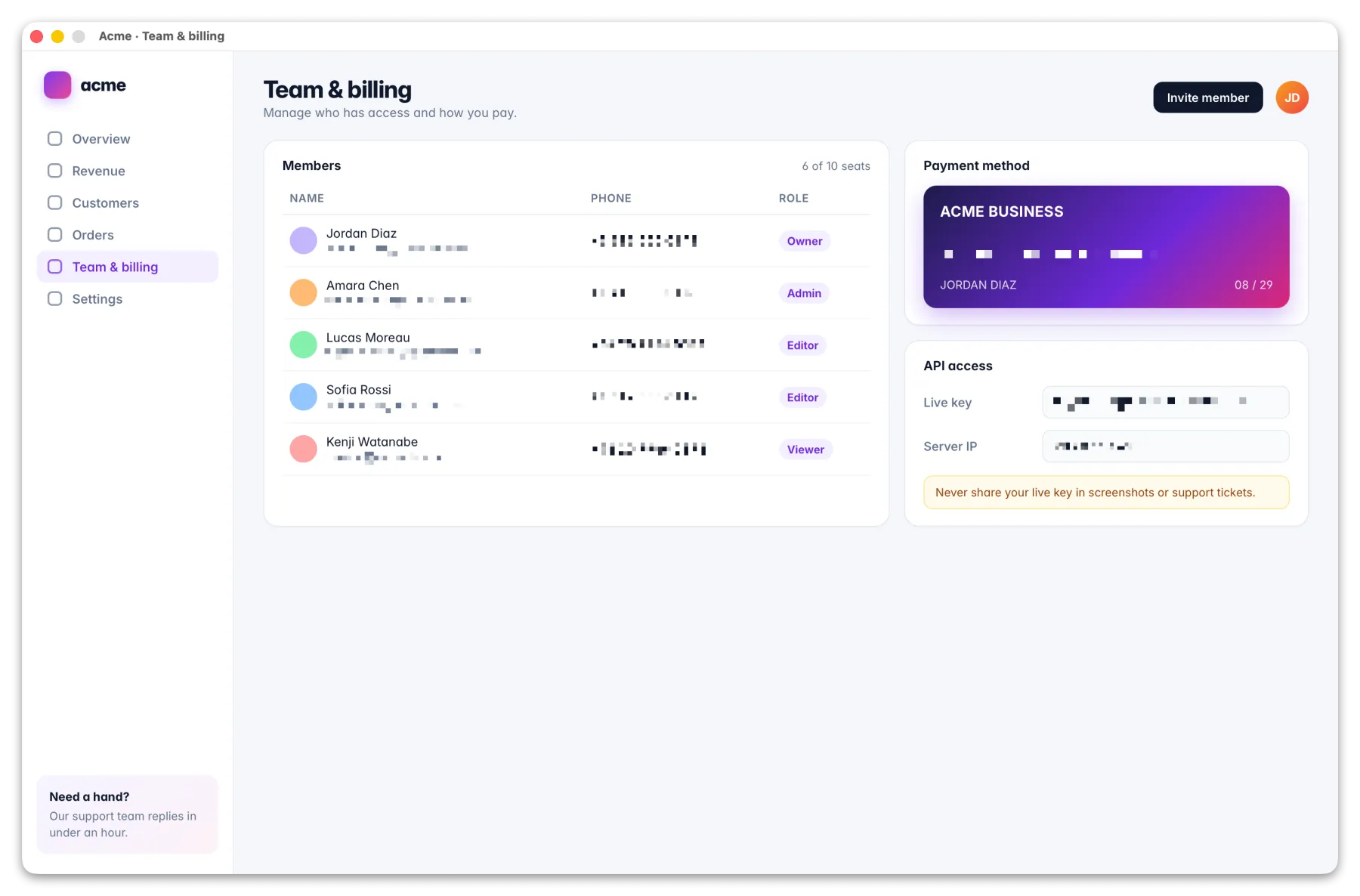
A screenshot for a bug report or a tutorial often shows more than it should. HashShot reads it, finds the private details and blurs them for good before anyone else sees it.
How it works
Three steps.
Capture
Take the screenshot as you normally would.
Find private details
Choose Find Sensitive Data, and HashShot blurs every match it finds.
Share safely
The blur is baked into the pixels, so it cannot be undone by anyone who receives it.
What you get
Built for work you share.
Part of HashShot, the screenshot and screen recording app for Mac that keeps everything on your Mac.
Finds what matters
Email addresses, phone numbers, card numbers, IBANs and API keys, including ones written with look alike letters.
Permanent
Redaction replaces the pixels. There is no hidden layer to remove.
On your Mac
The screenshot is read on your Mac. Nothing is uploaded to be checked.
Fine tune by hand
Add or remove blur anywhere with the editor's blur and pixelate tools.
FAQ
Questions, answered.
How do I blur sensitive information in a screenshot on a Mac?
Open the screenshot in HashShot and choose Find Sensitive Data. It finds emails, phone numbers, card numbers, IBANs and API keys and blurs them.
Can someone remove the blur?
No. HashShot replaces the pixels in the exported image, so there is nothing underneath to recover.
Is my screenshot uploaded to find the data?
No. Detection runs on your Mac.
More from HashShot
Try HashShot free for 7 days.
Then $25 once, with a year of updates. No subscription, no account.