GIF recorder
Record your Mac screen as a GIF.
A short loop explains a click path better than a paragraph, and it plays everywhere: docs, tickets, chats and email. HashShot records GIFs directly or makes them from any recording.
How it works
Three steps.
Choose Record GIF
From the menu bar, the HashShot window or its shortcut.
Select and record
Pick an area or a window and show the steps.
Stop and share
The GIF is ready to copy, drag or save.
What you get
Built for work you share.
Part of HashShot, the screenshot and screen recording app for Mac that keeps everything on your Mac.
Size against sharpness
Choose 8 to 20 frames per second, a maximum width, and a quality level that suits chat apps with upload limits.
Studio GIFs
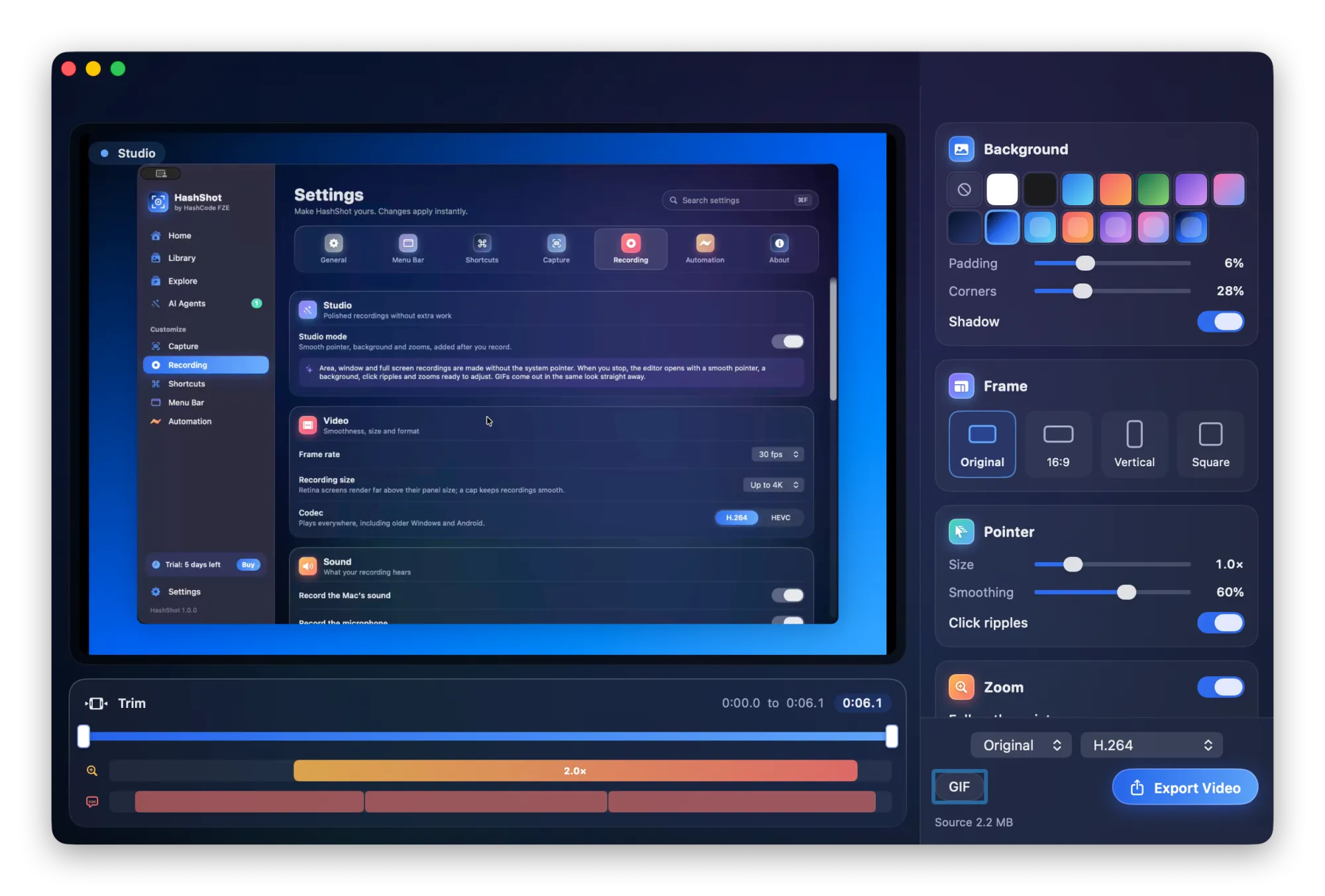
With Studio mode on, GIFs get the smooth pointer, click ripples, zooms and background too.
From any recording
Trim a video in the editor and export just that part as a GIF.
Saved on your Mac
GIFs land in your library, ready to drag into any app.
FAQ
Questions, answered.
How do I record a GIF on a Mac?
Choose Record GIF in HashShot, select the area or window, show the steps and stop. The GIF is saved and ready to share.
Can I make a GIF from an existing screen recording?
Yes. Open the recording in the HashShot editor, trim it and export as GIF.
How do I keep GIFs small?
Lower the frame rate or width, or choose the smaller file quality setting.
More from HashShot
Try HashShot free for 7 days.
Then $25 once, with a year of updates. No subscription, no account.