Clean desktop
Hide desktop icons on your Mac in one click.
A desktop full of files makes every screenshot and screen share look messy. HashShot covers your icons and widgets with your wallpaper until you bring them back. Nothing is moved and Finder is not changed.
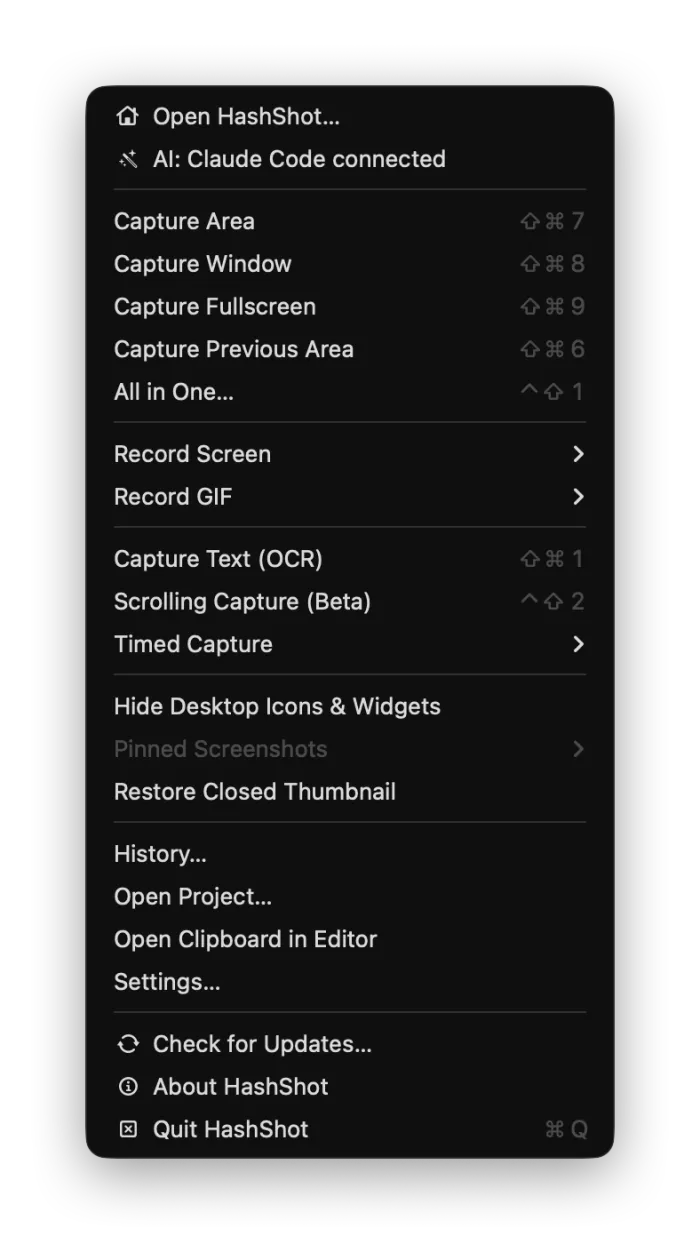
How it works
Three steps.
Open the HashShot menu
Click the HashShot icon in the menu bar.
Hide Desktop Icons
Icons and widgets disappear behind your wallpaper.
Bring them back
Choose it again when you are done.
What you get
Built for work you share.
Part of HashShot, the screenshot and screen recording app for Mac that keeps everything on your Mac.
Icons and widgets
Both are covered, so only your wallpaper shows.
Nothing changes
Your files stay where they are and Finder settings are not touched.
Perfect for captures
Clean full screen shots, window shots on your real desktop, and recordings.
Great for meetings
Share your screen without showing what is on your desktop.
FAQ
Questions, answered.
How do I hide desktop icons on a Mac quickly?
Choose Hide Desktop Icons in the HashShot menu. Choose it again to show them.
Does it move or change my files?
No. HashShot covers the icons with your wallpaper; your files and Finder settings stay the same.
Does it hide widgets too?
Yes, desktop widgets are covered as well.
More from HashShot
Try HashShot free for 7 days.
Then $25 once, with a year of updates. No subscription, no account.