Timed capture
Take a screenshot with a timer on your Mac.
Some things only appear while you hold the mouse still or keep a menu open. Timed Capture gives you a countdown to set the scene, then captures it exactly as it looks.
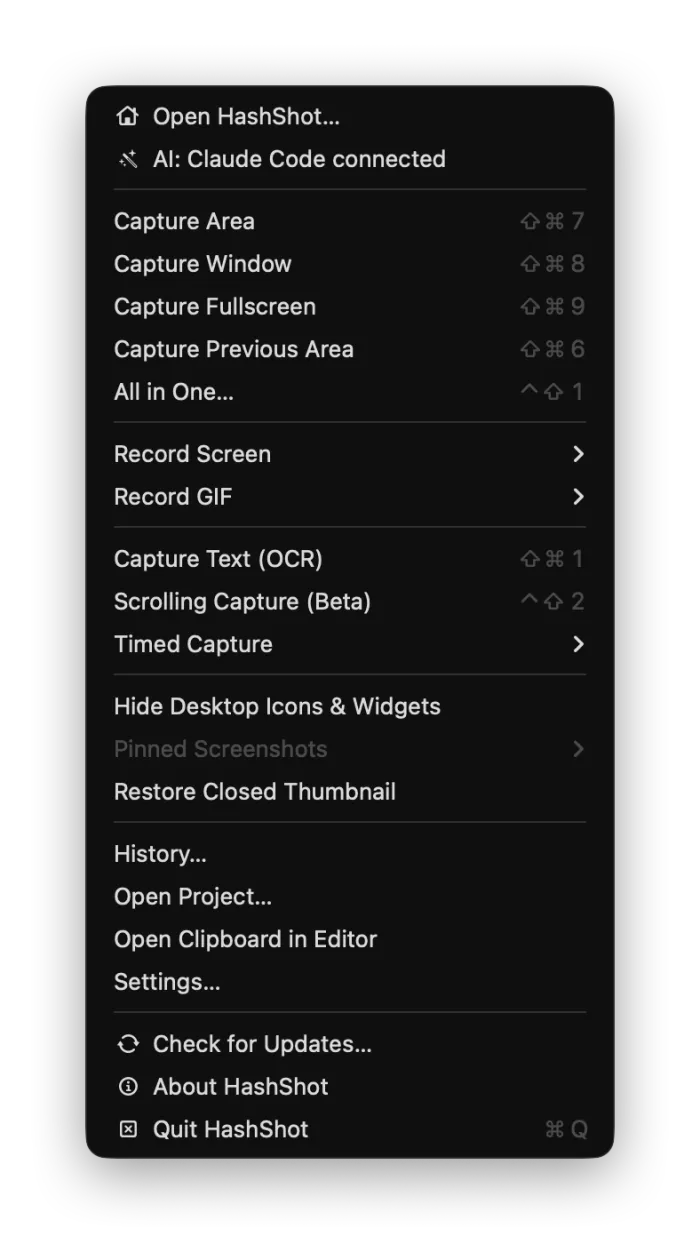
How it works
Three steps.
Choose Timed Capture
From the HashShot menu in the menu bar.
Set the scene
Open the menu, tooltip or hover state during the countdown.
Captured
HashShot takes the shot when the countdown ends.
What you get
Built for work you share.
Part of HashShot, the screenshot and screen recording app for Mac that keeps everything on your Mac.
Menus and tooltips
Capture things that close as soon as you press a key.
Freeze while you select
HashShot can freeze the screen while you select, so even fleeting states are captured as you saw them.
Countdown before recording
Get 3, 5 or 10 seconds to get ready before a recording starts.
Then polish it
Annotate and beautify the result like any other capture.
FAQ
Questions, answered.
How do I take a delayed screenshot on a Mac?
Choose Timed Capture in HashShot, open what you want to show during the countdown, and the screenshot is taken automatically.
Can I screenshot an open menu?
Yes. Use Timed Capture, or capture an area: HashShot can freeze the screen while you select so open menus stay visible.
Is there a countdown for recordings?
Yes. Choose off, 3, 5 or 10 seconds in Settings, Recording.
More from HashShot
Try HashShot free for 7 days.
Then $25 once, with a year of updates. No subscription, no account.