Automation
Automate screenshots and recordings on your Mac.
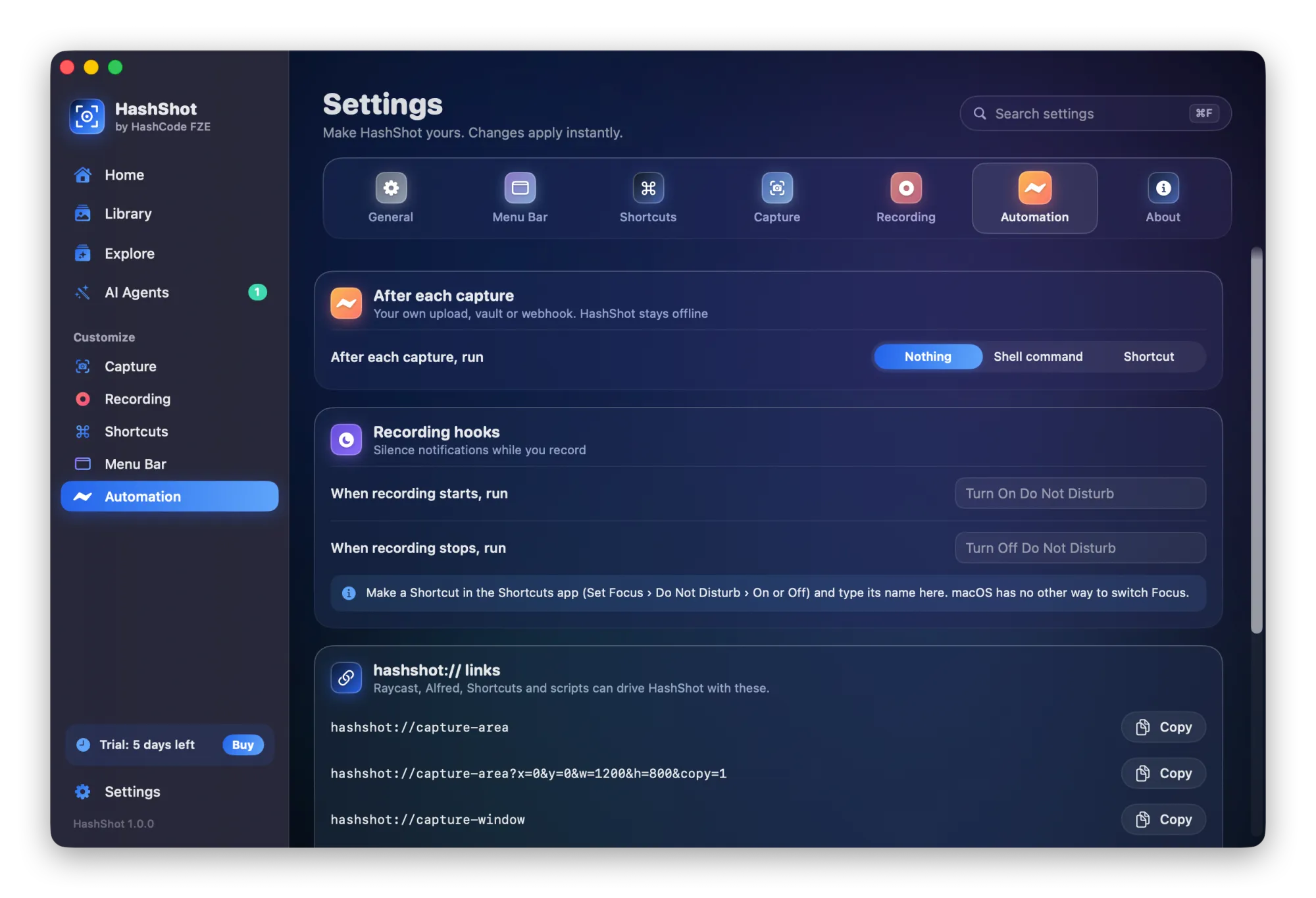
Send every capture to your own server, vault or webhook, start a recording from your launcher, and switch on Do Not Disturb while you record. HashShot stays offline; your automations decide where things go.
How it works
Three steps.
Open Settings, Automation
Everything automatic lives in one place.
Choose what runs
A shell command or a Shortcut after each capture, or hooks for recordings.
Trigger from anywhere
Use hashshot links from Raycast, Alfred, Shortcuts or a script.
What you get
Built for work you share.
Part of HashShot, the screenshot and screen recording app for Mac that keeps everything on your Mac.
After each capture
Run your own shell command or Shortcut with the new file, for uploads, vaults or webhooks.
Recording hooks
Run Shortcuts when a recording starts and stops, for example to turn Do Not Disturb on and off.
Links for launchers
Capture an area, a window or the full screen, start or stop recording, with a link.
Works with AI agents
Agents connected through the HashShot MCP server can capture and record on request.
FAQ
Questions, answered.
Can I upload screenshots to my own server automatically?
Yes. Set a shell command or Shortcut to run after each capture, and send the file wherever you like.
Does HashShot work with Raycast and Alfred?
Yes. They can open hashshot links that capture, record and open files.
Can I silence notifications while recording?
Yes. Run a Shortcut that turns Do Not Disturb on when recording starts and off when it stops.
More from HashShot
Try HashShot free for 7 days.
Then $25 once, with a year of updates. No subscription, no account.