Pinned screenshots
Pin a screenshot on your Mac and keep it floating on top.
Copying numbers from a design, following steps from a document, comparing two versions: some screenshots are meant to stay in view. Pin one and it floats above every window until you close it.
The background
Why pin a screenshot
A pin is a screenshot in its own small window that floats above every app. It stays put while you switch windows, so a reference stays in view: a color value to copy, a layout to rebuild, an error message to type into a search, steps to follow in another app, or yesterday's version to compare with today's.
You can pin from three places. After each capture, hover the floating thumbnail and click Pin. In the editor, choose Pin to screen, and the floating copy includes your arrows and notes. With All in One, select an area first and choose to pin it, and the pin appears right where you selected.
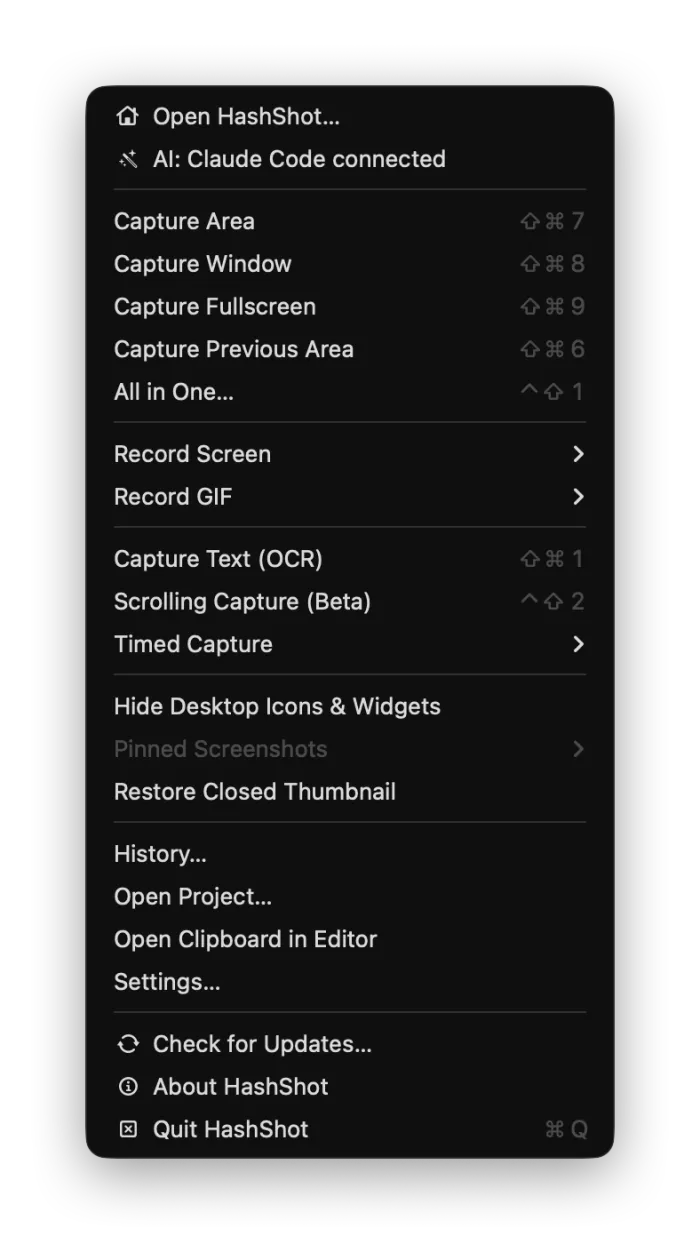
When pins get in the way, press ⌃⇧P (Control Shift P) to hide them all, and press it again to bring them back. You can change that shortcut in Settings. To clear them for good, open the HashShot menu in the menu bar, choose Pinned Screenshots and then Close All Pins.
How it works
How to pin a screenshot on Mac.
Capture
Take an area, a window or a full screen capture as usual.
Click Pin
Hover the thumbnail that appears and click Pin, or choose Pin to screen in the editor.
Keep working
The pin floats above every window. Drag it anywhere and close it when you are done.
What you get
What you can do with a pin.
Part of HashShot, the screenshot and screen recording app for Mac that keeps everything on your Mac.
Always on top
Pins float above your other apps and windows, so a reference never gets buried.
Resize and fade
Pinch, or hold ⌥ (Option) while you scroll, to resize a pin. Scroll with two fingers to fade it, or pick an opacity from its menu.
Right click for more
Copy the image, save it, print it, open it in the editor to annotate, or extract its text.
Hide all with one shortcut
⌃⇧P hides every pin and brings them back. Change the shortcut in Settings.
Close one or all
Double click a pin to close it. Close every pin at once from the menu bar.
Pins with your notes
Pin from the editor and the floating copy includes your arrows, text and blur.
FAQ
Pinned screenshot questions
How do I pin a screenshot on a Mac?
Take a capture with HashShot, hover the thumbnail that appears and click Pin. The screenshot opens in a small window that stays on top of everything else.
Can I keep a screenshot floating on top of other windows?
Yes. That is what a pin is: a floating screenshot window that stays above your other apps until you close it.
How do I hide all pinned screenshots at once?
Press ⌃⇧P (Control Shift P), and press it again to show them. You can also choose Hide All Pins from a pin's menu or from Pinned Screenshots in the menu bar.
Can I make a pinned screenshot see through?
Yes. Scroll with two fingers over the pin to fade it, or right click it and choose an opacity.
How do I close all pins?
Open the HashShot menu in the menu bar, choose Pinned Screenshots, then Close All Pins. To close a single pin, double click it.
More from HashShot
Try HashShot free for 7 days.
Then $25 once, with a year of updates. No subscription, no account.