Snipping Tool for Mac
A Snipping Tool for Mac: capture, mark up and paste in seconds.
Moved from Windows and miss the habit of pressing a shortcut, dragging a box and pasting the result? HashShot works the same way on a Mac, and adds an editor, text capture and scrolling capture on top.
The background
Snipping Tool habits, on a Mac
On Windows, many people press the Windows key with Shift and S, drag a box and paste the snip into a chat or a document. A Mac has no app called Snipping Tool, but the same steps exist, and they take a moment to relearn.
macOS covers the basics on its own. Shift Command 4 turns the pointer into a crosshair so you can drag over an area, and adding Control copies the result to the clipboard instead of saving a file. Our guide on how to screenshot on a Mac explains every shortcut that comes with macOS.
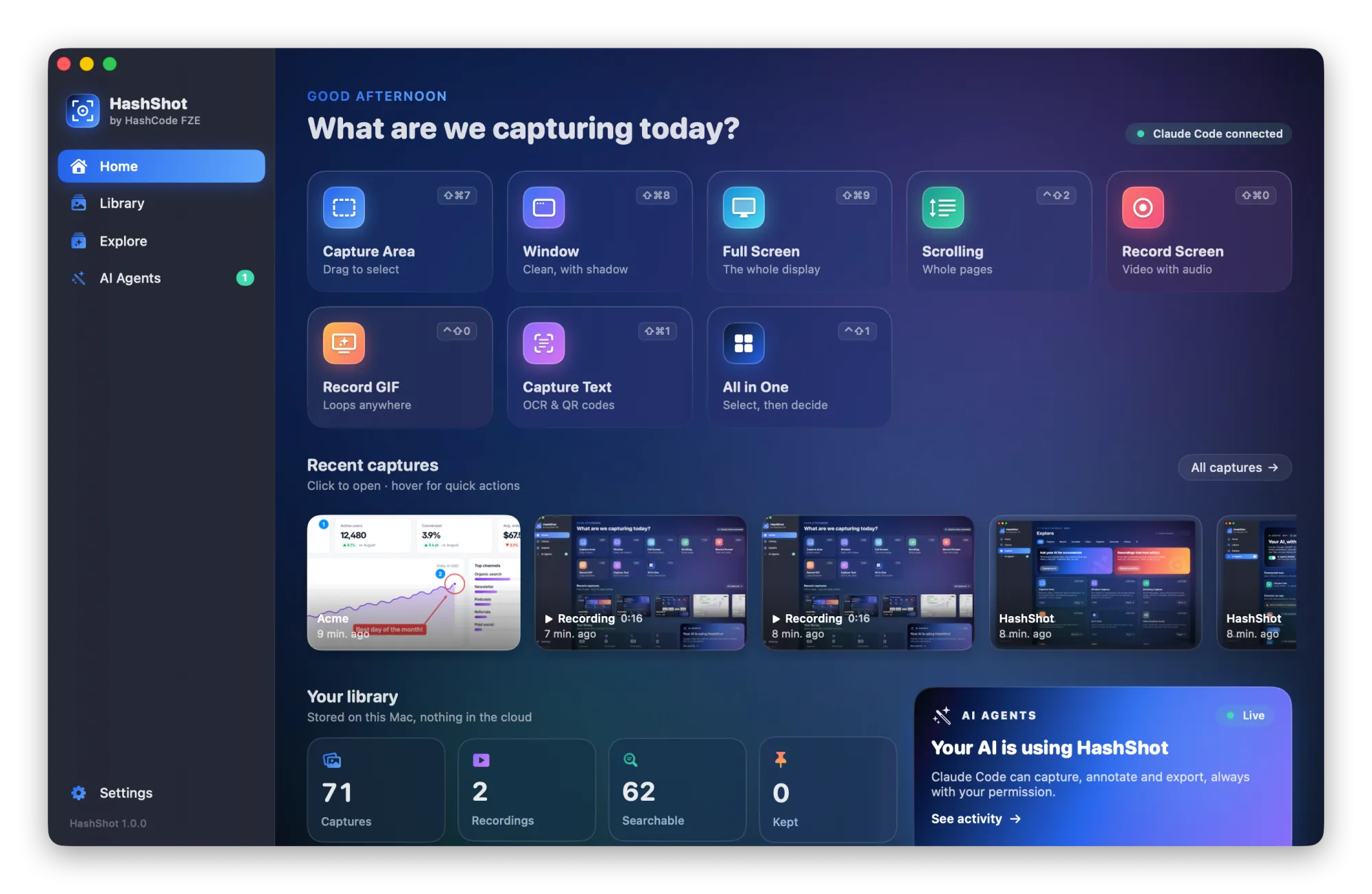
HashShot is for when a quick snip is not quite enough. Each capture is copied to your clipboard and shown as a small thumbnail, so you can paste it right away or click Annotate to add arrows, numbered steps and blur. You can copy the text out of a capture, capture a page longer than your screen, or keep a capture floating on top while you work. Everything stays on your Mac, with no account.
How it works
How to snip on a Mac with HashShot.
Press a shortcut
⇧⌘7 (Shift Command 7) captures an area, ⇧⌘8 a window and ⇧⌘9 the full screen. Change any of them in Settings.
Select what you need
Drag a box, click a window or take the whole display. The screen can freeze while you select, so open menus stay open.
Paste or mark it up
The capture is already on your clipboard. Paste it anywhere, or click Annotate on the thumbnail to add arrows, text and blur.
What you get
What HashShot adds to a snip.
Part of HashShot, the screenshot and screen recording app for Mac that keeps everything on your Mac.
Area, window and full screen
The snips you know, plus Capture Previous Area with ⇧⌘6 to take the same region again in one press.
All in One
Press ⌃⇧1 to select first and decide after: capture, copy, record, make a GIF, grab text, scroll or pin it on top.
Markup that stays editable
Arrows, shapes, drawing, text, emoji, numbered steps, a spotlight, crop and a highlighter that snaps to words. Change any of it later.
Blur before you send
Hide details by hand with blur and pixelate, or let HashShot find emails, phone numbers, card numbers, IBANs and API keys for you.
Copy the text instead
Capture Text with ⇧⌘1 reads the words in any part of the screen and puts them on your clipboard, along with QR codes.
Longer than your screen
Scrolling Capture with ⌃⇧2 scrolls a page, chat or document for you and joins it into one tall image.
A timer for menus
Timed Capture gives you a countdown to open a menu or tooltip, then takes the shot, like a delayed snip.
FAQ
Snipping Tool for Mac questions
Is there a Snipping Tool on Mac?
Not by that name. macOS has its own screenshot shortcuts, such as Shift Command 4 to drag over an area, and apps like HashShot add markup, text capture and scrolling capture on top.
What is the Mac shortcut for Snipping Tool?
The closest match is ⇧⌘4 (Shift Command 4), which lets you drag over an area. Add Control to copy it to the clipboard instead of saving a file. With HashShot, ⇧⌘7 captures an area and copies it to your clipboard by default.
Can I draw on a screenshot on a Mac like in Snipping Tool?
Yes. Click Annotate on the HashShot thumbnail and the editor opens with arrows, shapes, a pen, a highlighter, text and blur. Your marks stay editable.
How do I take a delayed snip on a Mac?
Choose Timed Capture in the HashShot menu. You get a countdown to open the menu or tooltip you want, then the screenshot is taken.
Does HashShot upload my snips?
No. Captures stay on your Mac. There is no account and no cloud library.
More from HashShot
Try HashShot free for 7 days.
Then $25 once, with a year of updates. No subscription, no account.