Screen recording with audio
Record your Mac screen with internal audio and your microphone.
Show a video with its sound, walk through an app that plays alerts, or talk over a demo. HashShot records the sound your Mac plays and your microphone together, with no extra audio software to set up.
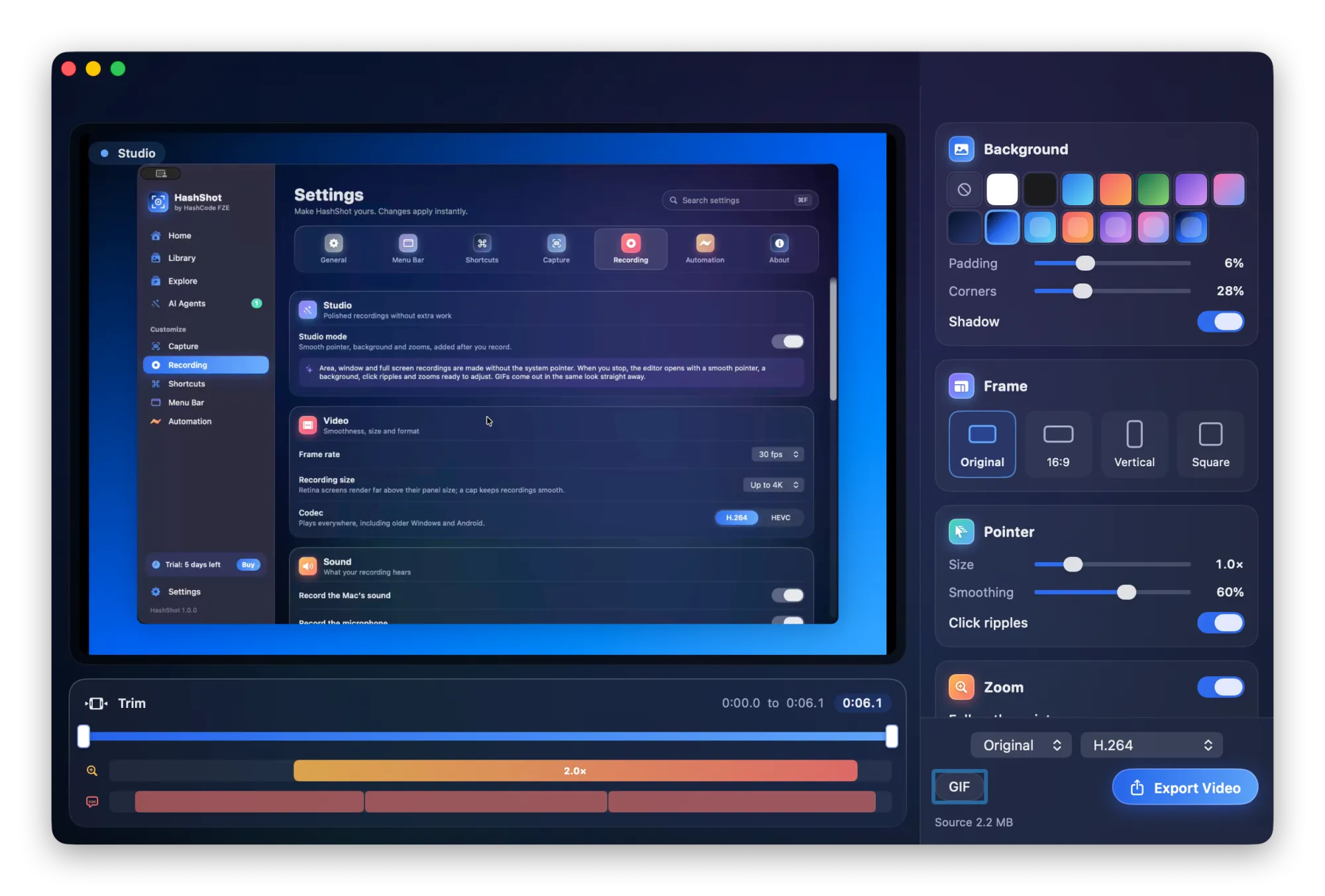
The background
Internal audio, explained
Internal audio, also called system audio, is everything your Mac plays through its speakers: a video in the browser, a notification, the other side of a call, the music in a product demo. HashShot records it through the screen capture system that is part of macOS, so there is no virtual audio device to install and nothing to route by hand.
Both sources are switches in Settings, Recording, Sound. Record the Mac's sound is on from the start, and Record the microphone is one click away. Recording the microphone needs macOS 15 Sequoia or later. The Mac's own sound works on every Mac that runs HashShot, which needs macOS 14 Sonoma or later.
When you stop, HashShot can clean up your voice. On Macs that have Apple's voice isolation, the microphone is processed after recording to remove fans, traffic and keyboard sounds, and your voice is brought to a clear, even level. If you prefer the raw sound, switch off Reduce background noise.
GIFs cannot carry sound, so Record GIF leaves audio out. When the sound matters, record a video and export MP4. You can still turn the same recording into a silent GIF later.
How it works
How to record your Mac screen with audio.
Choose your sound
In Settings, Recording, Sound, keep Record the Mac's sound on and switch on Record the microphone if you want to talk.
Record
Press ⇧⌘0 (Shift Command 0) and pick an area, a window or the whole screen. Play the video or start talking.
Edit and export
Open the recording in the editor to trim it, set the volume and add captions, then export MP4 or a GIF.
What you get
Sound options in the HashShot recorder.
Part of HashShot, the screenshot and screen recording app for Mac that keeps everything on your Mac.
The Mac's sound and your voice
App, browser and call audio is recorded together with your microphone, in one recording.
No extra software
Internal audio is recorded through macOS itself. No virtual audio driver and no routing.
Less background noise
Apple's voice isolation removes fans, traffic and typing from your microphone after you stop, where your Mac supports it.
Captions from what you said
Turn speech into timed captions on your Mac, then burn them in or save an SRT file. Your audio is never uploaded.
Mono for voice overs
Switch on Mono audio when you want the same sound in both ears.
Add your camera
Turn on the camera bubble to appear in a corner while you talk, and move it again after recording.
MP4 or GIF
Export the recording as MP4 with its sound, choose H.264 or HEVC, or make a silent GIF for docs and chats.
FAQ
Recording with audio questions
How do I record my Mac screen with internal audio?
Install HashShot, check that Record the Mac's sound is on in Settings, Recording, and record as usual. The sound your Mac plays is saved in the recording.
Can I record internal audio and my microphone at the same time?
Yes. Switch on both Record the Mac's sound and Record the microphone. Recording the microphone needs macOS 15 Sequoia or later.
Do I need to install an audio driver to record system audio?
No. HashShot records the Mac's own sound through macOS screen capture, so there is no virtual audio device to set up.
Why is there no sound in my GIF?
GIFs cannot carry sound. Record a video instead and export MP4 to keep the audio.
Can HashShot remove background noise from my voice?
Yes, on Macs that have Apple's voice isolation. Reduce background noise in Settings, Recording cleans the microphone after you stop.
More from HashShot
Try HashShot free for 7 days.
Then $25 once, with a year of updates. No subscription, no account.