Free tool
Free screenshot beautifier.
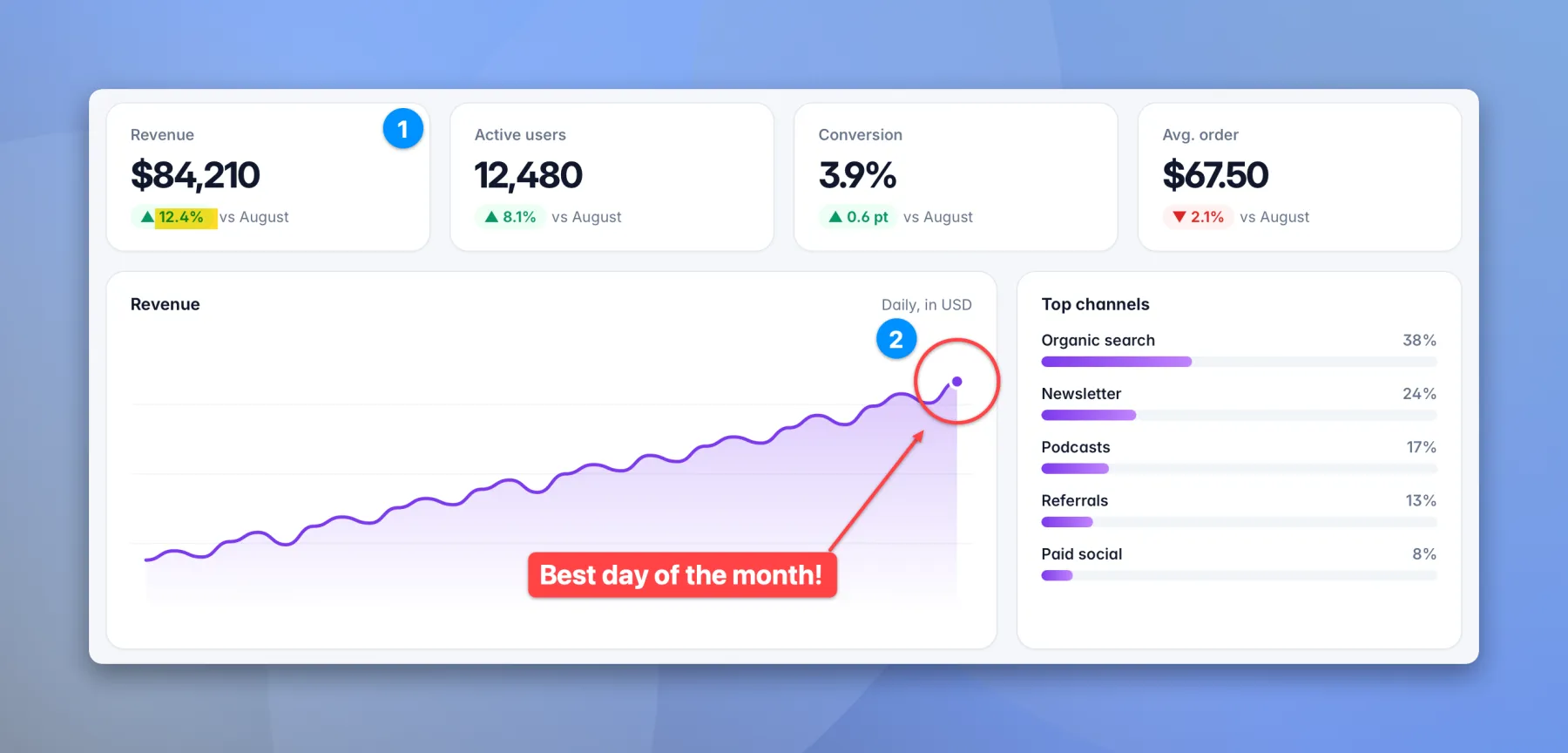
Put any screenshot on a background with padding, rounded corners and a soft shadow, then download it as a PNG. It all happens in this page: your image is never uploaded.
Drop an image here, paste one with Command V or Control V, or choose a file.
Background
How it works
How to beautify a screenshot.
Add your screenshot
Drop it on the preview, paste it, or choose a file. PNG, JPEG, WebP and GIF all work.
Style it
Pick a background, then set the padding, the corners and the shadow. Add a window bar or a shape for slides and posts.
Download or copy
Save a full size PNG, or copy it and paste it straight into a doc, a slide or a post.
On a Mac
Every capture, beautified as you take it.
This page is for one screenshot at a time. HashShot for Mac does it on capture, with presets, glass styles and the real window shadow.
FAQ
Screenshot beautifier questions
Is the screenshot beautifier free?
Yes. It is free to use with no sign up, no watermark and no limit.
Are my images uploaded?
No. The image is drawn on a canvas inside this page, on your own computer. Nothing is sent to a server, so it is safe for screenshots with private details.
What size is the download?
The PNG keeps the full resolution of your screenshot, plus the padding you chose. Retina screenshots stay sharp.
Can every screenshot look like this automatically?
Yes, with the HashShot app for Mac. Save a style as a preset and it is applied to each new capture, with gradients, glass styles and the real window shadow.
Does it work on Windows and iPad?
Yes. It works in any modern browser, on any computer or tablet.
More from HashShot
Try HashShot free for 7 days.
Then $25 once, with a year of updates. No subscription, no account.